Local WordPress Development With Docker
Tuesday, May 21, 2024
Every now and then I need to work on one of my friends' website. Usually these are built with WordPress and most of the time I just need to make some kind of customisation to a theme or plugin and setting up a staging environment often takes up too much of my time because I need to either wait for credentials or OTPs, etc. I also don't want to run software like MAMP or XAMMP on my laptop because I usually don't have loads of disk space available and it still involves a lot of manual steps.
I decided that the best way for me to spin up these temporary environments would be to use Docker and Docker Compose, since I already have both installed on my computer and all I would need to do is create a yaml file to get everything up and running within seconds.
If you want to do the same, make sure you have Docker and Docker compose installed and follow these steps:
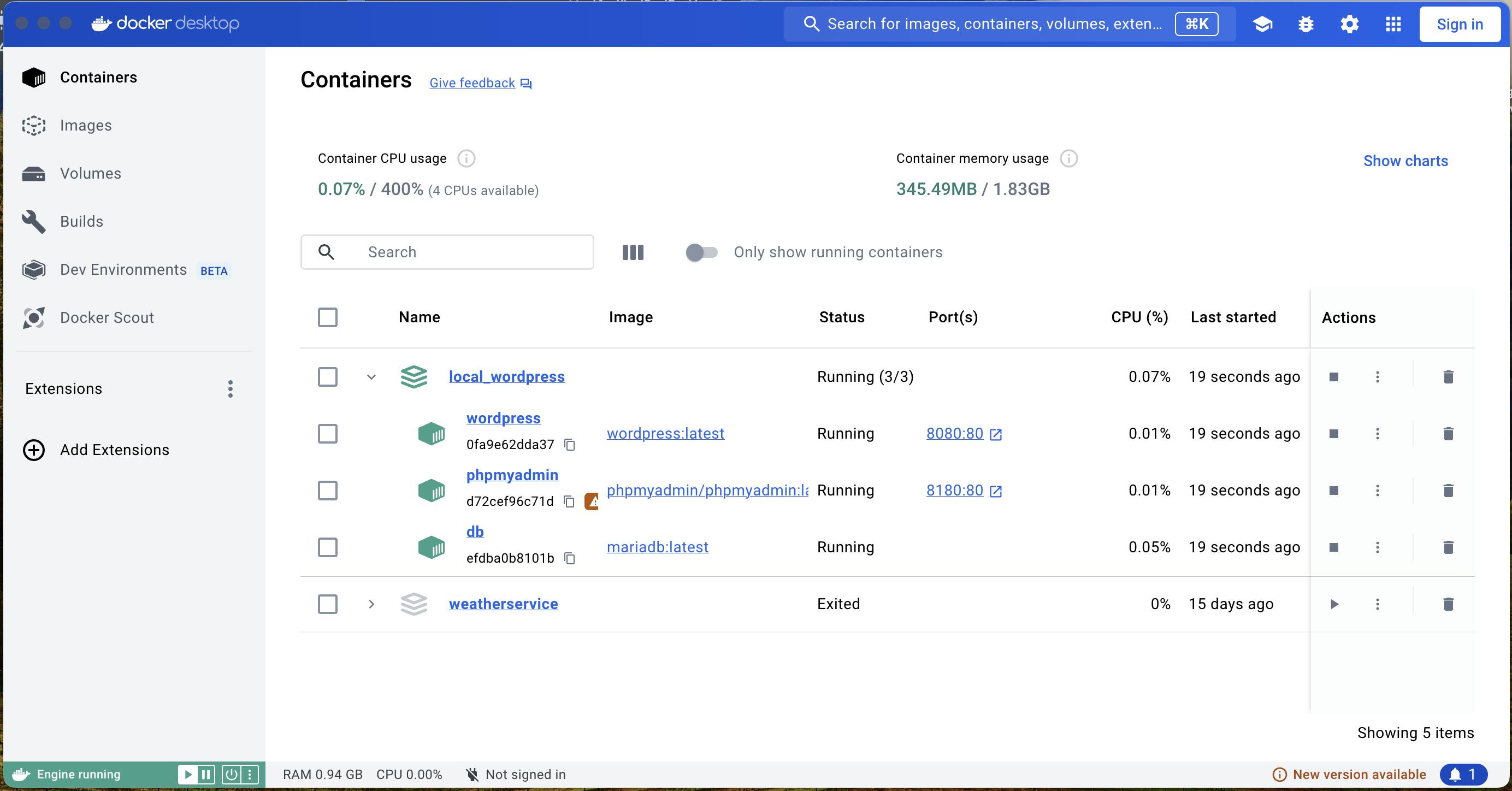
- Create a directory. I'm going to call mine local_wordpress and it is inside of a folder called CodeRepos which is within my user directory.
- Create a file called docker-compose.yml with the following contents in the directory you just created:
version: "3.6"
services:
  wordpress:
    image: wordpress:latest
    container_name: wordpress
    volumes:
      - ./wordpress:/var/www/html
    environment:
      - WORDPRESS_DB_NAME=wordpress
      - WORDPRESS_TABLE_PREFIX=wp_
      - WORDPRESS_DB_HOST=db
      - WORDPRESS_DB_USER=root
      - WORDPRESS_DB_PASSWORD=password
    depends_on:
      - db
      - phpmyadmin
    restart: always
    ports:
      - 8080:80

  db:
    image: mariadb:latest
    container_name: db
    volumes:
      - db_data:/var/lib/mysql
    environment:
      - MYSQL_ROOT_PASSWORD=password
      - MYSQL_USER=root
      - MYSQL_PASSWORD=password
      - MYSQL_DATABASE=wordpress
    restart: always

  phpmyadmin:
    depends_on:
      - db
    image: phpmyadmin/phpmyadmin:latest
    container_name: phpmyadmin
    restart: always
    ports:
      - 8180:80
    environment:
      PMA_HOST: db
      MYSQL_ROOT_PASSWORD: password

volumes:
  db_data:
- Run the following commands to set the file permissions, make sure you use your computer's logged in username:
sudo chown -R username: wordpress
sudo chmod a+w wordpress
- Navigate to http://localhost:8080 and configure WordPress.
I'm using MacOS but this should also work on any Linux system or on Windows Subsystem for Linux.